
Trades importieren
Trandence Imports Trades from Broker-Exported CSV/TXT Dateis und normalizes them into Sessions, Trades, tags, und analytics-ready records. The Import flow is designed to catch obvious problems vor Daten reaches your journal.
Before You Import
Export your Trade Historie directly from your Broker. Nutzen Sie die Broker’s official Export tool whenever possible, und keep die original Datei unchanged.
Before uploading, confirm:
- The Broker ausgewählt in Trandence matches die Datei you Exported.
- The CSV Timezone matches die timezone used by timestamps inside die Datei.
- The Datei covers die intended date range.
- You have not edited Spalte headers or changed numeric/date formats manually.
Start A CSV/TXT Import
- Open Trades.
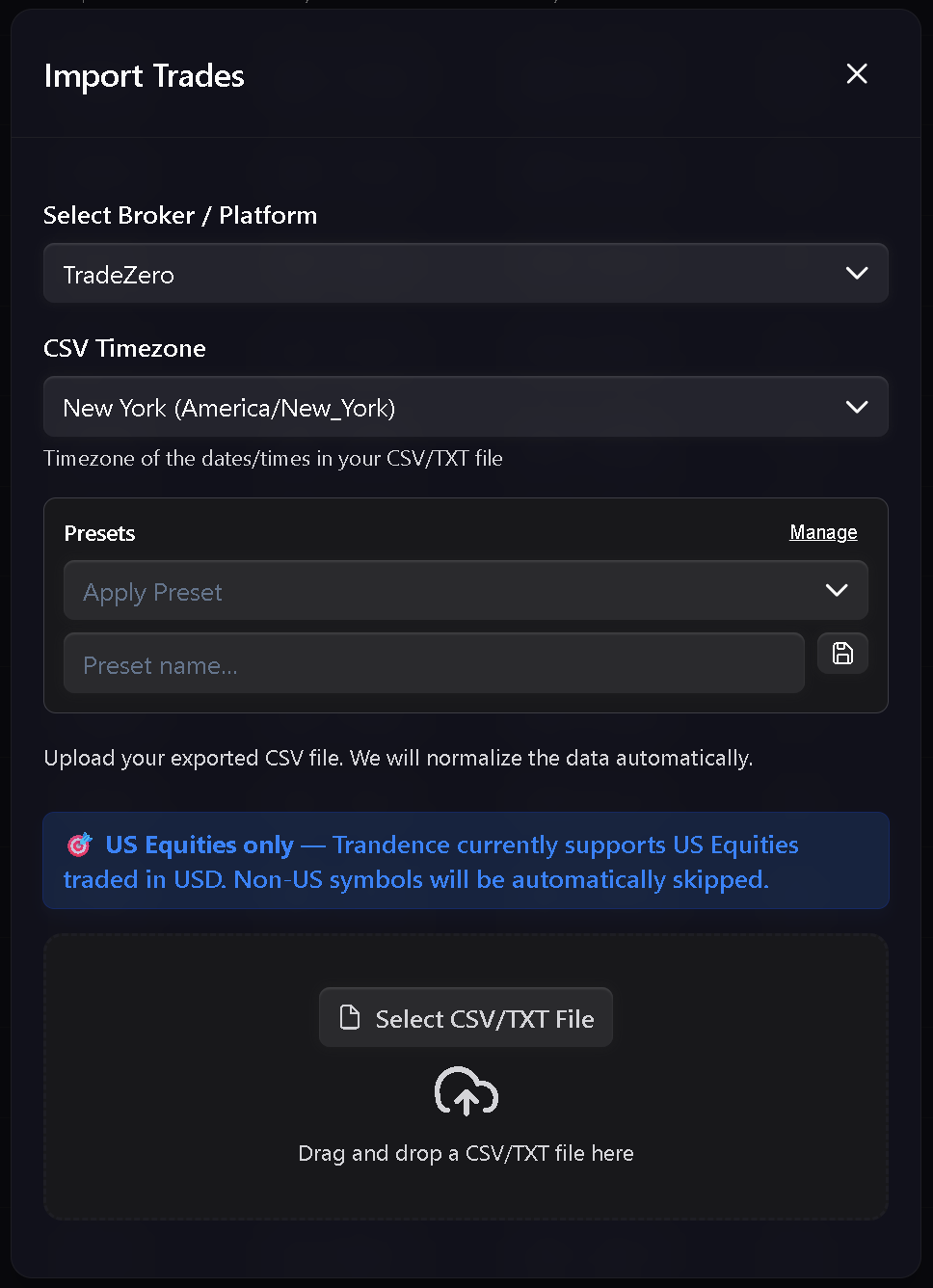
- Klicken Sie Import Trades.
- Wählen Sie Upload CSV/TXT.
- Wählen Sie die Broker that produced die Datei.
- Setzen Sie CSV Timezone to die timezone used in die Exported Datei.
- Optionally apply an Import preset.
- Wählen Sie or drop die CSV/TXT Datei.
Trandence parses die Datei und opens die review step vor anything is saved.
Import Presets
Presets are useful when die same Broker Export erfordert die same Einstellungen every time. Nutzen Sie them to reduce repeat setup work for recurring Imports.
Nutzen Sie a preset when:
- You repeatedly Import from die same Broker Konto.
- You always use die same CSV timezone.
- You want a consistent setup vor previewing Dateis.
Prüfen Sie Imported Trades
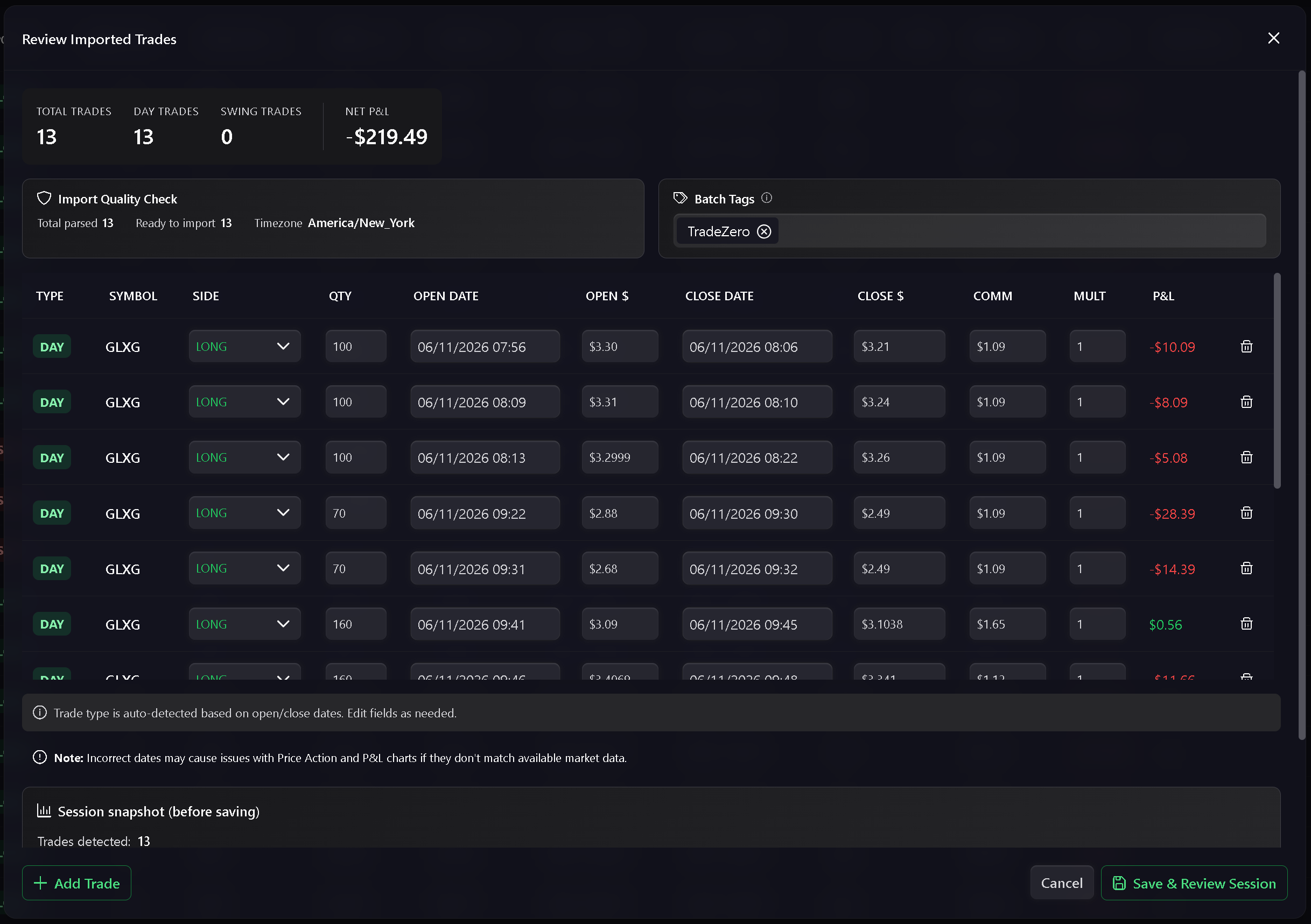
The preview step lets you inspect die parsed result vor saving. It zeigt Import quality checks, parsed Trade rows, timezone context, validation issues, und a Session snapshot.
Nutzen Sie this step to confirm:
- Symbols und sides look correct.
- Open und close times match die Broker Datei.
- Quantity, prices, commissions, und fees look reasonable.
- The Import is split into die expected Session or Sessions.
- Any invalid rows are understood vor continuing.
Wenn validation errors appear, fix die source Export or Import Einstellungen vor continuing.
Batch Tags
Nutzen Sie Batch Tags on die preview screen to label all Trades from die Import. Dies is especially useful when you track multiple Kontos, Brokers, strategies, or Daten-cleanup passes.
Examples:
TradeZero MainIBKR IRAJune reviewManual correction
Batch tags make it easier to filter die Trades Tabelle later und to identify which Import produced a Trade.
Multi-Session Imports
When a Datei enthält multiple trading days, Trandence Imports und analyzes each Session separately. The preview zeigt Session count und date range, then die save step displays progress while Sessions are uploaded.
Wenn part of a multi-Session Import fails, die progress area zeigt failed dates so you can review only die affected Sessions instead of guessing which day needs attention.
Conflict Prüfen Sie
Wenn incoming rows match existing Trades but differ in key Werte, Trandence opens Review Conflicts.
The aktuell conflict Workflow unterstützt:
- Comparing incoming und existing quantity, prices, und commission.
- Resolving individual conflicts with Keep Existing.
- Resolving all unresolved conflicts with Keep All Existing.
- Applying decisions vor continuing die Import.
Overwrite controls are visible in die UI but disabled for now. Nutzen Sie Keep Existing when Trandence flags a conflict, then re-Import only nach you intentionally remove or correct die existing Daten.
Exact duplicates are skipped silently when die existing Daten already matches die incoming row.
After Import
After saving, Trandence updates die trading record used by:
- Trades Tabelle filters und saved views.
- Calendar daily P&L und Zeitraum insights.
- Journal daily plans und symbol reviews.
- Day Reports und Symbol Reports.
- Dashboard analytics und behavioral metrics.
Nutzen Sie History on die Trades Seite to review previous Import jobs, statuses, source types, Broker, timezone, counts, skipped conflicts, und Imported Sessions. For die detailed audit Workflow, see Import History.
Broker Guides
Broker-specific pages explain where to Export Dateis und which Broker option to choose in Trandence. Start with die general Workflow here, then follow die Broker guide for Export details:
Brauchen Sie Hilfe?
Wenn an Import fails or your Broker changed its Export format, send die Datei type, Broker name, timezone, und error Meldung to [email protected].
Brauchen Sie Hilfe?
Fragen zu Trades importieren? Wir antworten innerhalb eines Werktages.