
Conector de Assistente de IA
O Trandence fala MCP (Model Context Protocol), o padrão aberto que os assistentes de IA usam para aceder a dados externos. Conecte-o uma vez e o seu assistente poderá ler diretamente as suas negociações (trades), estatísticas, configurações (setups), diários de bordo (playbooks) e o seu diário — sem exportar CSVs, sem colar capturas de ecrã e sem copiar números à mão.
Pergunte “como é que negociei em fevereiro?” e o assistente lerá os números reais do seu diário em vez de adivinhar com base no que lhe contou.
Antes de ligar
Precisa de uma conta Trandence com as suas negociações importadas — o conector lê o seu diário, por isso um diário vazio não tem nada para dizer.
Não precisa de iniciar sessão primeiro. Se não o tiver feito, o processo de ligação guiá-lo-á através da autenticação e levá-lo-á diretamente para o passo de aprovação.
Ligar o Claude
Funciona em todos os planos, incluindo o Free — embora uma conta gratuita esteja limitada a um único conector no total. Os passos são os mesmos no navegador e na aplicação de ambiente de trabalho.
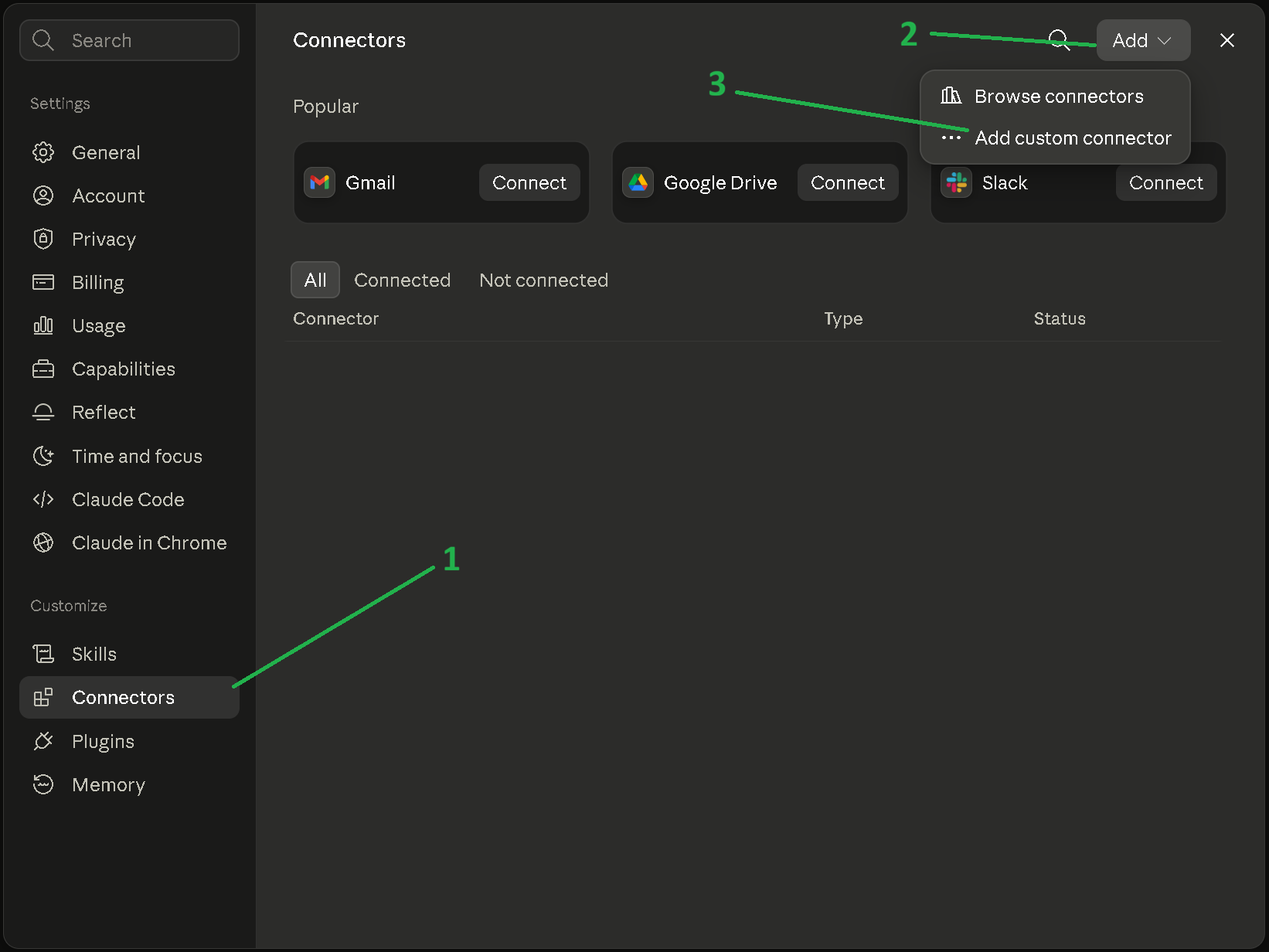
- No Claude, abra Customize > Connectors, clique em Add e escolha Add custom connector.
-
Atribua-lhe um Name (Nome) — Trandence — e cole o Remote MCP server URL (URL do servidor MCP remoto):
https://api.trandence.com/api/mcp -
Deixe as Advanced settings (Definições avançadas) em paz. O ID de cliente e o secret OAuth são opcionais e não precisa deles: o Claude identifica-se automaticamente. Preenchê-los irá quebrar a ligação.
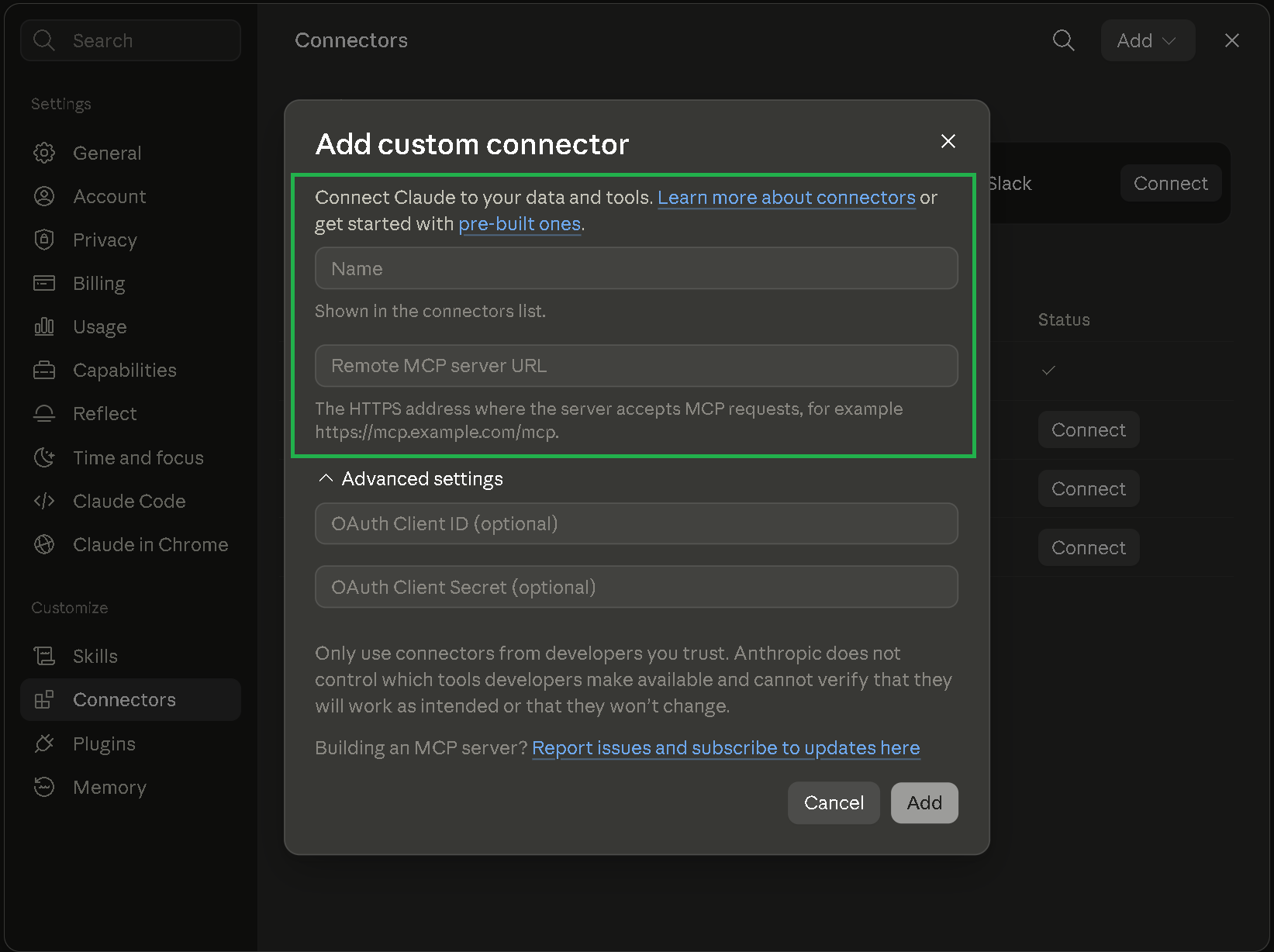
- Clique em Add.
O Claude abrirá uma página do Trandence a pedir-lhe para autorizar o acesso. A página indica o nome da aplicação, mostra qual a conta que será lida e lista exatamente o que lhe é permitido fazer. Clique em Allow (Permitir).
Esta é toda a configuração. Assim que estiver ligado, o Claude mostrará as ferramentas disponíveis.
Ligar o ChatGPT
O ChatGPT suporta conectores MCP personalizados nos planos Pro, Max e Enterprise, por trás de uma definição de programador.
- Abra Settings > Apps > Advanced settings e ative o Developer mode (Modo de programador). Nos espaços de trabalho Business e Enterprise, um administrador tem de permitir isto primeiro em Workspace Settings > Permissions & Roles > Connected Data.
- Aceda a Settings > Connectors e clique em Create.
- Atribua-lhe um nome — Trandence — e introduza o URL do servidor:
https://api.trandence.com/api/mcp - Escolha OAuth como método de autenticação. Deixe as credenciais de cliente vazias.
- Guarde e, em seguida, autorize. Irá parar à mesma página de aprovação do Trandence descrita acima.
Mantenha o conector limitado a Individual (Individual), a menos que queira mesmo que os seus colegas leiam o seu diário — um conector de Organização é partilhado.
O que o assistente pode e não pode fazer
O acesso é apenas de leitura, a menos que diga o contrário, e a leitura é o padrão em todo o lado: a caixa de aprovação está desmarcada, assim como a da caixa de diálogo das chaves. Clique diretamente e o assistente poderá ver, mas não mexer.
Não existe nenhuma versão desta ligação que possa colocar uma negociação, alterar um preço, apagar o que quer que seja ou mexer nas suas definições. As suas etiquetas (tags), configurações, playbooks e cada pontuação também permanecem intocáveis — são estes que a análise mede, e se um assistente os preenchesse, isso significaria que os números estão parcialmente a medir o assistente.
A única coisa que pode permitir é a escrita no seu diário, e apenas em três locais: o seu plano para um dia, a sua reflexão sobre um dia e a sua reflexão sobre um símbolo que negociou. Marque a caixa e o assistente poderá registar lá o que lhe disser. Mais nada muda numa negociação.
Três regras aplicam-se sempre que o faz:
- Ele escreve as suas palavras, e não a interpretação dele das suas negociações. Se não disse o que estava a pensar, espera-se que ele pergunte em vez de compor algo que soe bem.
- Ele não pode substituir silenciosamente o que escreveu. Onde já tiver texto, a escrita é recusada e o assistente tem de lhe mostrar o que lá está e perguntar. Só se concordar é que pode prosseguir.
- Pode sempre voltar atrás. Cada entrada que ele escreve é marcada no Trandence como obra sua, e o texto que substituiu é guardado — um clique volta a colocá-lo no editor, e guardar mantém-no.
Mudou de ideias?
O que permite fica fixo no momento em que aprova a ligação, pelo que mudá-lo significa aprovar novamente.
- Claude, ChatGPT e outros assistentes onde iniciou sessão: remova o conector Trandence nas definições do assistente, adicione-o novamente com o mesmo endereço de servidor e faça uma nova escolha no ecrã de aprovação. Remova-o primeiro — enquanto o assistente mantiver uma ligação ativa, continuará simplesmente a usá-la com as permissões que já tinha.
- Chaves API: as permissões de uma chave não podem ser editadas. Crie uma nova chave com a caixa marcada ou desmarcada, coloque-a na sua configuração e revoque a antiga.
Funciona da mesma maneira na direção oposta, se permitiu a escrita e quiser voltar a colocar a ligação apenas de leitura.
Porque é que esta opção existe: a razão pela qual os diários são abandonados não é porque os traders não têm nada para dizer, mas sim porque ninguém quer preencher um formulário às 16:05. Falar sobre o assunto e fazê-lo aterrar no diário elimina esse obstáculo.
Lê apenas os seus próprios dados. Nada sobre outros traders está acessível através do conector.
O que pode ler:
- Resumos de desempenho — P&L, taxa de acerto (win rate), fator de lucro (profit factor), comissões, em qualquer intervalo de datas
- Desdobramentos dia a dia e por ticker
- Como cada playbook realmente performa — para que “estou a planear negociar este setup” possa ser verificado face ao seu histórico
- Resultados por grau de setup, juntamente com a matriz de risco que indica quanto risco cada grau pode assumir
- Negociações individuais, incluindo execuções (fills) e as suas notas de playbook
- Métricas de disciplina, com o tamanho da amostra em que cada pontuação se baseia
- O seu diário diário e uma pesquisa no mesmo
- As suas próprias configurações e playbooks
Esses dois pontos do meio são o que torna a ligação valiosa. O assistente avalia as suas negociações face às suas regras e não a conselhos de negociação genéricos — e pode dizer-lhe se as notas em que aumenta a dimensão são aquelas que realmente compensam.
Também dependem inteiramente de si: uma negociação sem playbook associado e sem grau de setup não pode ser medida dessa forma. Se a maioria das suas negociações não tiver etiquetas, comece por aí — é a diferença entre um assistente que relata números e um que pode julgar o seu processo.
Coisas que vale a pena perguntar
Comece por aqui — estas utilizam bem o conector:
- “Analisa a minha negociação do mês passado.”
- “Em que tickers faço overtrading e quanto é que isso me custa?”
- “Fui disciplinado na semana passada? Sê sincero.”
- “Avalia as minhas últimas dez negociações face aos meus próprios setups.”
- “Qual é o meu erro recorrente mais frequente? Olha para todo o diário.”
- “Quanto do meu P&L vai para comissões?”
- “Encontra todos os dias em que escrevi sobre revenge trading e mostra-me o que aconteceu nesses dias.”
Dois hábitos que tornam as respostas muito melhores:
Peça um período específico. “Fevereiro” ou “as últimas duas semanas” é melhor do que “recentemente” — o assistente obtém números exatos para um intervalo de datas.
Peça-lhe para verificar as suas regras, não apenas os seus resultados. Um dia verde com um processo quebrado continua a ser um dia mau, e o conector dá ao assistente tudo o que ele precisa para o dizer.
Números em que pode confiar
Cada valor chega pré-calculado a partir do próprio Trandence. O assistente não está a somar negociações nem a fazer aritmética — recebe os mesmos P&L, taxa de acerto e múltiplos R que a aplicação lhe mostra, para que os dois nunca possam discordar.
Onde faltam dados, o conector diz isso explicitamente em vez de preencher a lacuna. Se não registou que regras seguiu, a disciplina aparece como sem dados (no data) — e não como uma pontuação de zero. Um mês sem negociações devolve “nada registado (nothing recorded)”, e não um número com aspeto neutro que pareça uma constatação.
Gestão de acessos
Ambos os tipos de acesso são geridos em Settings > Integrations no Trandence.
Claude, ChatGPT e outros assistentes onde iniciou sessão estão listados sob Connected assistants, com a data em que cada um foi ligado e se pode escrever no seu diário. Desligar um assistente produz efeitos logo no seu pedido seguinte; para usá-lo novamente, adicione o conector e inicie sessão de novo. Remover o conector Trandence nas definições do próprio assistente também impede que este faça pedidos, mas apenas o Trandence pode garantir que o acesso é revogado.
As chaves API estão listadas sob Your keys. Revogar uma chave aí tem efeito logo no pedido seguinte.
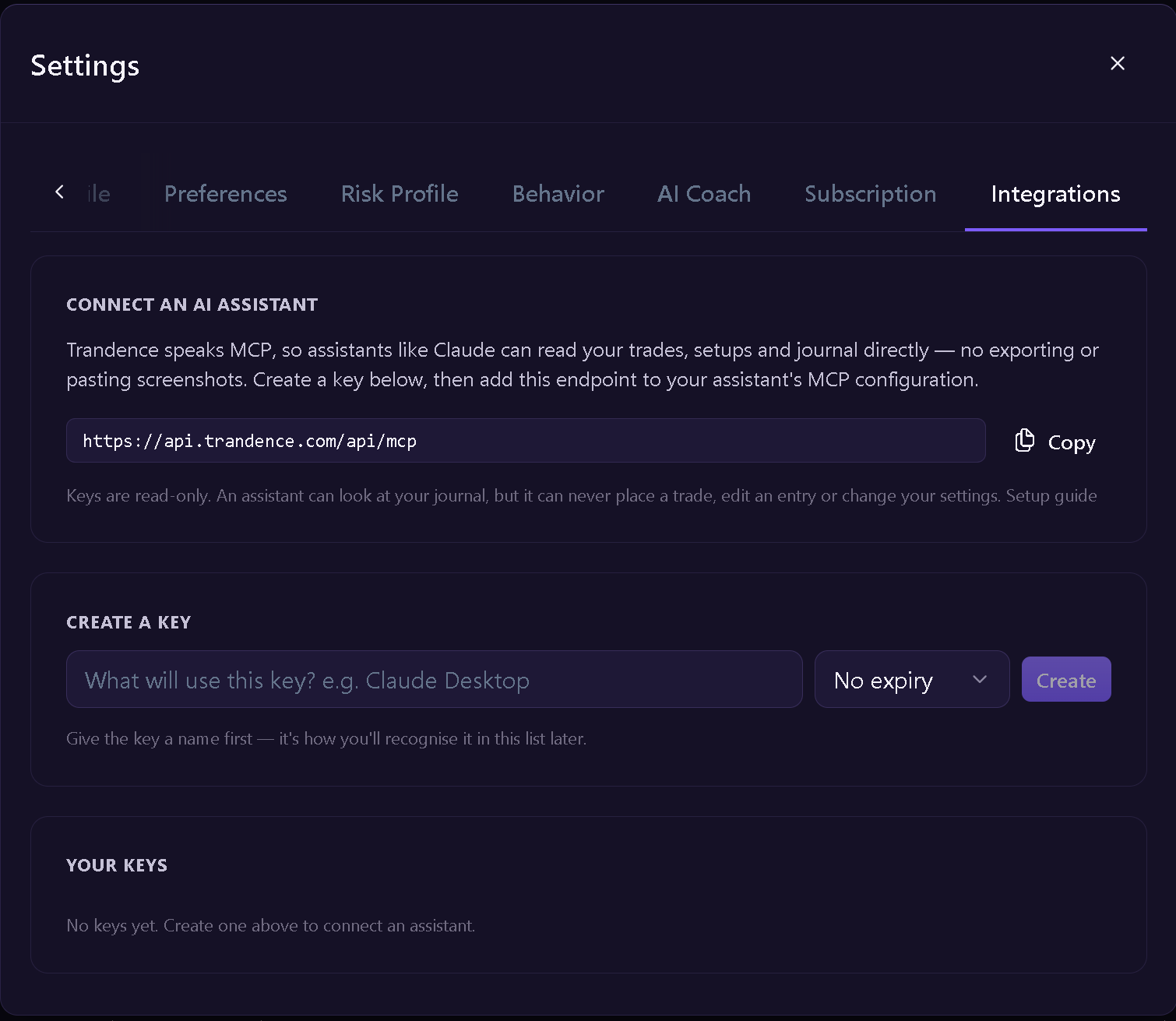
O mesmo ecrã emite chaves API para ferramentas que se ligam com um token em vez de um início de sessão no navegador — tipicamente assistentes de linha de comandos e integrações de IDE. Uma chave é apenas de leitura, a menos que marque a caixa de escrita no diário ao criá-la; as chaves que a trazem estão identificadas na lista e cada chave é mostrada uma única vez quando é criada.
Outros assistentes
O conector é um servidor MCP remoto comum, e não algo construído para um único fornecedor. Qualquer coisa que fale o padrão pode usar o mesmo URL: é servido através de HTTPS com transporte HTTP Streamable e OAuth, que é a combinação que os assistentes pedem.
Os assistentes de linha de comandos e IDE normalmente preferem um ficheiro de configuração em vez de um início de sessão no navegador. Estes utilizam em alternativa uma chave API obtida em Settings > Integrations, enviada como um token de portador (bearer token):
{
  "mcpServers": {
    "trandence": {
      "type": "http",
      "url": "https://api.trandence.com/api/mcp",
      "headers": { "Authorization": "Bearer A_SUA_CHAVE" }
    }
  }
}
Trate esse ficheiro da mesma maneira que trataria uma palavra-passe: a chave nele contida concede acesso ao seu diário — apenas de leitura, ou também de escrita no diário se marcou essa caixa — até que a revoque, e ela não pertence a um repositório git.
O suporte para MCP difere entre produtos e evolui rapidamente. Se os passos acima já não coincidirem com o que vê, procure por “custom connector”, “remote MCP server” ou “developer mode” nas definições do seu assistente — o endereço do servidor é a única coisa de que ele precisa da nossa parte.
O conector também está listado no Smithery:
Precisa de ajuda?
Dúvidas sobre Conector de Assistente de IA? Respondemos em até um dia útil.